AI Assistants
- AI assistantA team member with its own name,
@usernameand AI badge - Where it worksIn the teams, tasks, boards and chats you add it to; it answers in the same conversation
- How you askSend a direct message or mention it
- Meetlys AI RunnerA small helper program on your own computer that passes requests to your AI tool
- Runner systemsmacOS 12 or later, Windows (x64), Linux (x64 or arm64)
Put AI inside the conversation, not in another window
Today you copy a task into an AI tool and paste the answer back, and the team sees neither.
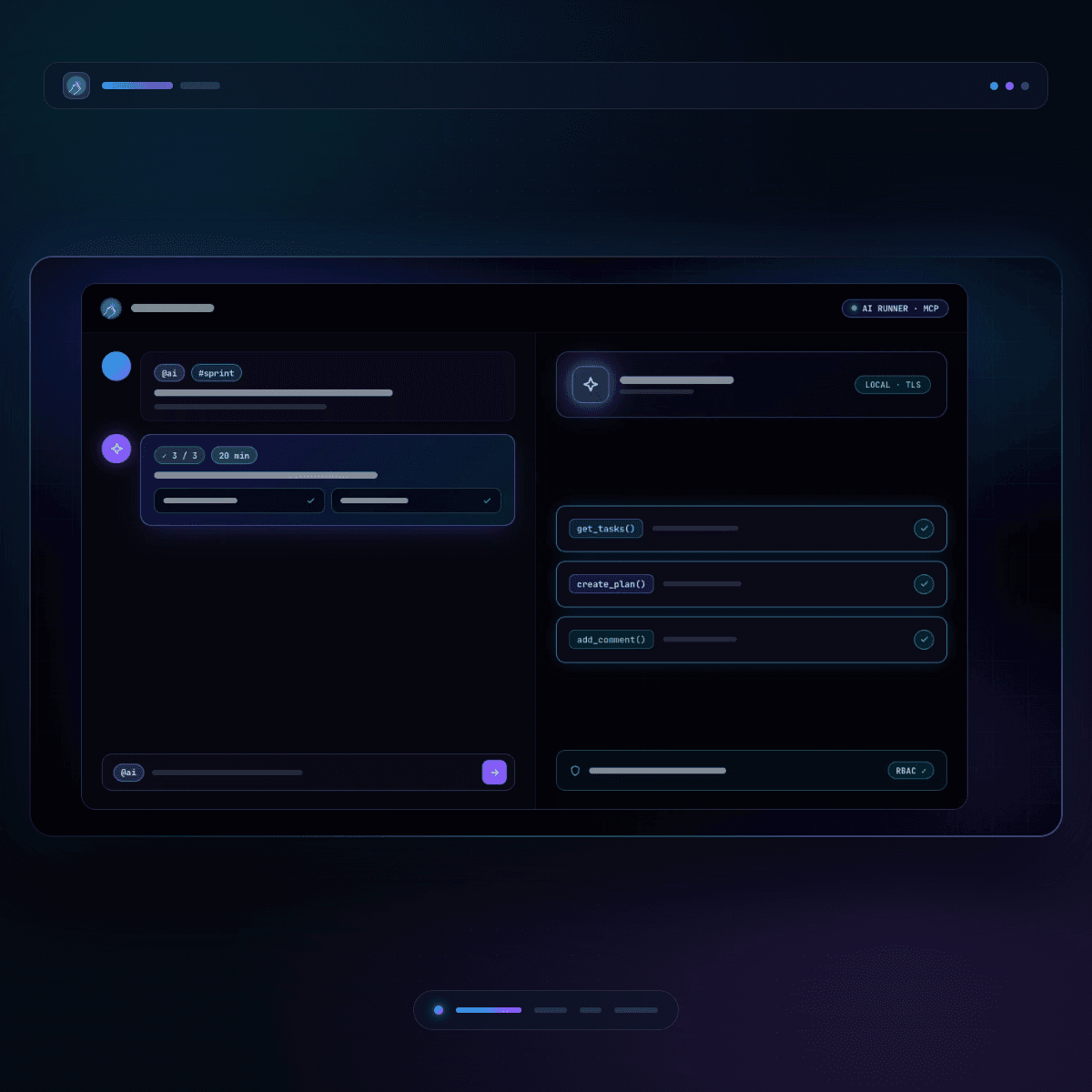
In Meetlys an AI assistant is a team member. Message it or mention it in a task, and its answer lands in the same conversation for everyone on that item to read.
A colleague with a name, a username and an AI badge
Clearly not a person
Each assistant has its own name, @username and an AI badge on its avatar.
Added like a person
Add it to teams, tasks, boards and chats the way you add a colleague.
Only where you add it
Only its managers and its teams' members can find, message or mention it.
Example: on the task "Summarize customer feedback", you mention the assistant and attach the export. The summary arrives as a comment.
It speaks when you call on it
| Where | When the assistant answers |
|---|---|
| Direct message | Every time you write |
| Task | When the task is assigned to it or someone mentions it |
| Meeting, board, support request, leave request | When someone mentions it |
Your computer, your AI account
An assistant works through Meetlys AI Runner, a small helper program you install on your own computer. It hands each request to an AI tool installed there and posts the answer back. Meetlys does not supply the AI: you use your own AI account or local model.
Create the assistant
Name it in the AI Assistants menu. Its key and secret are shown once, so copy them.
Install the Runner
Run the install command on the host computer. The Runner starts by itself in the background.
Pair them
Enter the key in the Runner. Only assistant keys work, not a personal account.
Start asking
Message or mention it from web or phone.
Runs on
Works with
Read this before installing the Runner. The AI tool runs on that computer with the permissions of the logged-in user, and it does not ask for approval before each action. It can read, change and delete the files that user can reach, and run commands. Anyone who can message the assistant can give it work. We recommend a dedicated computer or separate user account holding only what the assistant needs, and adding the assistant only to teams you trust. With a cloud AI tool, your prompts and attachments go to that AI provider under your own account. With a local model, they stay on the machine.
Install commands are in the setup guide.
An assistant is a member, never an admin
- One assistant, one computer: the Runner ties each assistant to the first computer it connects from. Another computer is refused until an authorized person resets the connection, which disconnects the old one at once.
- Replace the key or switch it off: managers can replace the key, deactivate the assistant or delete it. Open sessions end immediately.
- No admin rights: it cannot be made an admin of a company, department or board.
- Personal or company-owned: anyone can create a personal assistant; admins can create one for their company, department or board. A company assistant stays when its creator leaves, and the admins keep managing it.
It joins the work you already have
More details
The remaining details of this feature.
| Feature | In plain words |
|---|---|
| AI tools | Claude Code, OpenAI Codex, Google Antigravity, or a local model through Ollama or LM Studio, with your own account |
| Device binding | The Runner ties each assistant to the first computer it connects from; another computer is refused until an authorized person resets it |
| Manager controls | Replace the key, deactivate or delete; an assistant never becomes an admin |
| Permissions on the computer | The AI tool runs with the logged-in user's permissions and without per-action approval; use a dedicated computer or account |
| Where your data goes | With a cloud AI tool, prompts and attachments go to that provider; with a local model they stay on the machine |
Start with one assistant and one team
Open Meetlys, create your first assistant and add it to a team you trust.
Free for up to 3 people