From a blank workspace to a working one: start by describing your business to AI
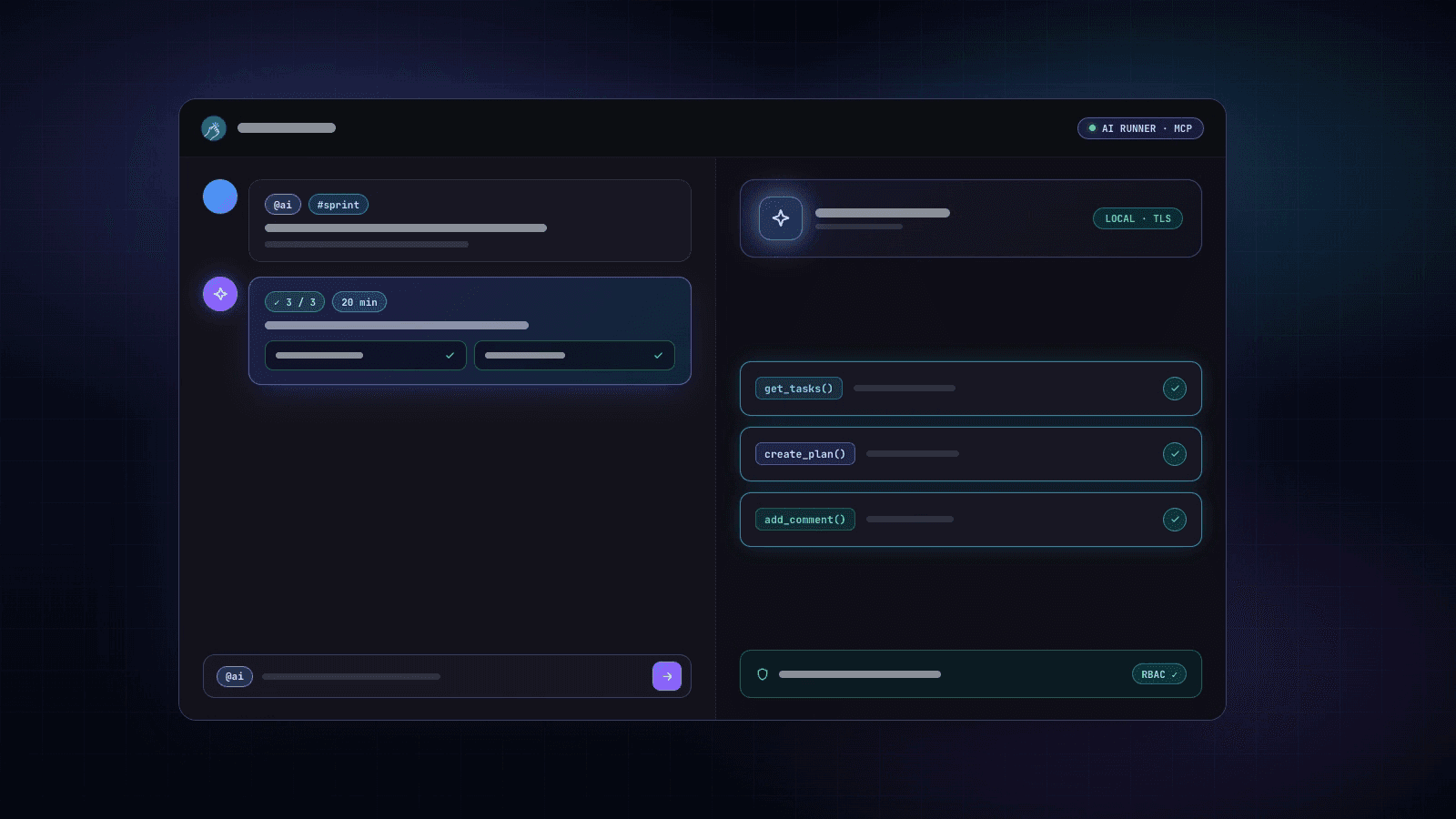
You sign up for a new workspace tool, open it, and look at an empty screen. No departments, no boards, no tasks. The tool is ready; the structure is not. Someone has to decide whether sales and client relations are one department or two, whether every client gets its own board, and where the meeting rooms belong. Usually that someone is you, guessing.
You already know how your business runs. What is missing is the translation from "how we work" to "what to create", and that is a job an AI chat can help with, as long as you remain the one who decides. Here is a two-step way to do it in Meetlys, limits included.
Why the empty workspace is hard
Creating a department takes a moment. The difficulty is that every choice leans on the others.
- Too much structure. You create a department for every job title and a board for every idea, and people stop knowing where things go.
- Too little structure. Everything lands on one board, and within a month it is a list nobody reads.
Step one: let the AI interview you
This step works with any AI chat and needs no connection to Meetlys. Do not ask for "a good structure". Ask to be interviewed first. Tell the AI how Meetlys is organized, with its two roles, Admin and Member, then have it ask about your business before it proposes anything.
I am setting up a workspace in Meetlys for my team.
Structure: company > department > board (project), plus locations
(office, branch, meeting room). Roles: Admin and Member.

Ask me, one question at a time, what my company does, how many
people and which teams we have, where our offices and meeting rooms
are, and how we work with clients.

Then propose a setup plan as a table: departments, boards for each
department, locations, who is Admin or Member, and 10 starter tasks
for the first week. Do not finalize the plan until I approve it.
Read the plan and have the AI correct what does not fit. For a small team, one company, two or three departments and a few boards are usually enough; you can extend the structure later. If you stop here, you still leave with a plan you can build by hand in the app. The full version of this prompt is in the guide Set up Meetlys with AI.
Step two: have your AI tool build it
This route is not for everyone. It is for people who use Claude Code, Cursor, VS Code, OpenAI Codex or Antigravity. These tools can be connected to your Meetlys account through MCP, the open standard AI tools use to connect to apps. You create an API key in Meetlys under Profile > Profile Menu > API Integrations and add the connection address to your tool; the Connect Your AI Tool page explains how. Once connected, the tool works with your permissions: it sees only what you can see and does only what you can do.
Then you walk through the plan in short prompts, one kind of record at a time: the company and its departments, then locations and meeting rooms, then boards, then the starter tasks.
In Meetlys, create a company called "Example Agency".
Add these departments under it: Design, Software, Client Relations.
First list what you are going to create and wait for my approval.
At the end, ask the tool to list everything it created in the session and compare that list with what you see.
This is not the same thing as AI Assistants, which are team members you message inside a conversation. Here the AI stays in your own tool and acts as you. The AI page describes both.
What stays with you
- The account and the API key. You create your account and the key yourself; AI cannot do that for you.
- Inviting people who have no account yet. You invite them in the app, by e-mail address or invitation link. People who already have an account can be added to a company, department or board by the AI if you ask.
- Role and visibility decisions. Who becomes an Admin and which board is open to whom are your calls. Review the AI's suggestion before you accept it.
- Card payments. Paying by card is not possible through an AI tool; it is done only in the app.
How to stay in control
The AI acts on your behalf. A connected tool does not only create records. With your permissions it can also delete records, send messages and share files. If you use a cloud AI tool, what you write goes to that tool's provider.
- List first, then approve. End every prompt with "list first, wait for my approval".
- Move in small steps. One prompt, one kind of record, one check in the app.
- Refuse what you did not ask for. Do not approve deletions, messages or share links unless you requested them explicitly.
- Look after the key. Do not share your API key with anyone. If you will not keep using the tool after the setup, revoke the key.
The takeaway
An empty workspace is a planning problem before it is a software problem. Describe your business to an AI chat, let it ask questions, and correct its plan until it looks like your company; that part is open to everyone. If you use one of the tools that can connect, let it build the plan in small, approved steps and check each one in the app. Keep the account, the invitations, the roles and the payments in your own hands.