Create your account and sign in
Open your Meetlys account, pick your @username, sign in with e-mail, Google or Apple, and reset your password.
By the end of this guide you will have a Meetlys account, your own @username and a working sign-in. You will also know how to reset your password if you forget it.
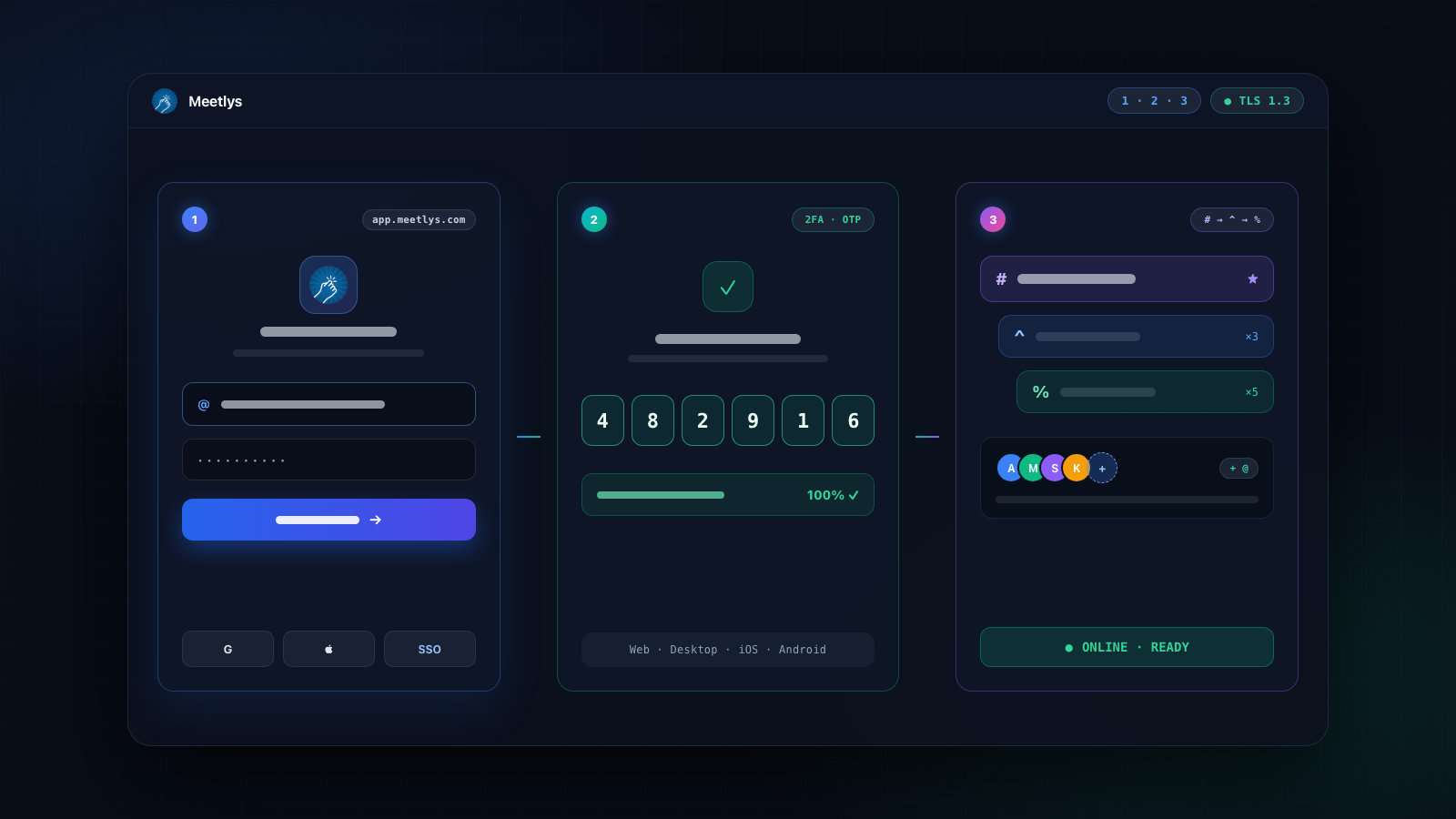
Before you start
- An e-mail address you can open.
- Meetlys itself: in a browser at app.meetlys.com, or one of the apps on the download page.
Create your account
- Open Meetlys and choose Create account on the sign-in screen.
- Type your name in Name Surname. This is the name your teammates see.
- Type at least 4 characters in Nickname. With an
@in front, this becomes your unique username; people search for you and mention you with it. - Enter your e-mail address and a password of 6 to 16 characters, then type the password again.
- Tick the Terms of Use box and submit the form.
Choosing a username. You can use lowercase letters, digits, dots, underscores and hyphens. Accented and non-Latin letters are converted automatically, and spaces become dots. A name is unavailable if someone already has it or if it is a reserved word such as admin or support.
Sign in
There are three ways to sign in; continue with the one you registered with.
- E-mail and password. Type your address in Work email, your password below it, and press Sign in.
- Google. Choose the Google option on the sign-in screen and pick your Google account.
- Apple. Choose the Apple option on the sign-in screen and confirm with your Apple ID.
After you sign in, Inbox opens first.
In the Windows app. The Google and Apple options are not shown in the Windows desktop app. Sign in there with your e-mail and password.
Reset your password
- On the sign-in screen, choose Forgot password?
- Type your registered e-mail address. A one-time verification code is sent to it.
- Enter the code and your new password. You can now sign in with the new password.
Things to know
- If you arrived by invitation. If you opened an invite link before having an account, the sign-up or sign-in screen opens first; once you are in, the invitation is accepted automatically.
- Account settings. From the profile area at the bottom of the menu, open Edit Profile to change your e-mail or password; the change is confirmed with a code sent to your e-mail. The option to delete your account is on the same screen.
- Signing out. Log Out clears the data saved on the device. Sign out when you finish on a shared device.