Work with guests
Learn what guests (collaborators) can and cannot see, and how to pause or remove their access.
When you want to give a piece of work to someone outside your team, you do not have to open the whole board to them. With this guide you will learn how guests come into being, what they can and cannot see, and how to stop their access. In the app these people are called collaborators.
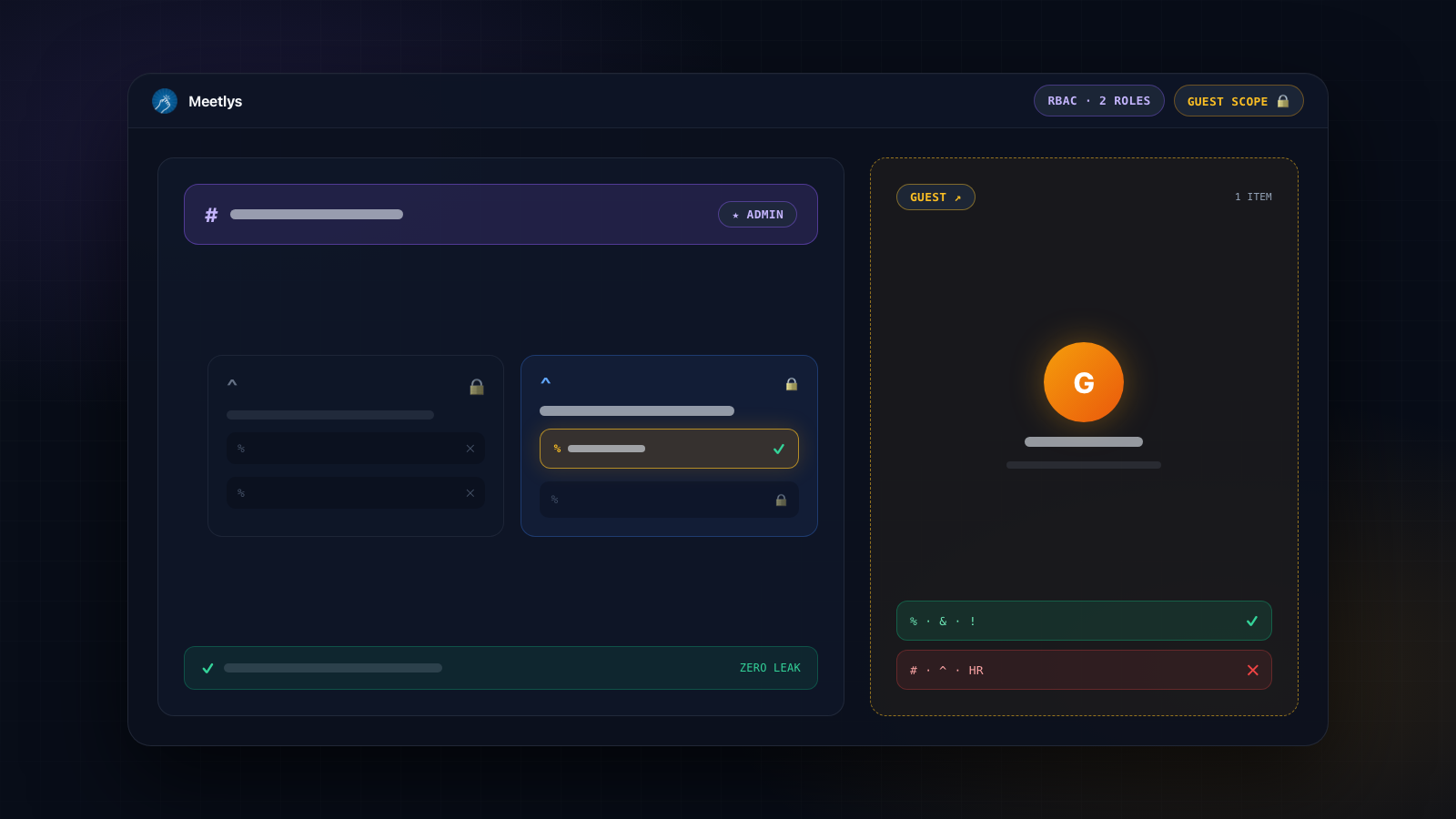
How a guest is created
Most of the time you do not have to do anything. When you assign someone who is not on a unit's team to one of the following, they become a guest (collaborator) of that unit automatically:
- a task or a subtask,
- a support ticket,
- a meeting.
- Open the task, ticket or meeting and go to the place where you choose its people.
- Search for the person. If they have no Meetlys account, type their e-mail address and invite them.
- Save. The person now appears in the unit's Collaborators list.
Admins can also add guests without waiting for an assignment, and can add several people at once.
What a guest can and cannot see
| Can see | Cannot see or do |
|---|---|
| Tasks assigned to them | Other people's tasks |
| Meetings they are invited to | Read or write in the unit's chat |
| Files of the tasks, meetings and tickets they are on | The unit's general files and activity history |
| An inventory item assigned to them (read-only, cost hidden) | Change board settings or manage the team |
People assigned only to a subtask. Someone assigned only to a subtask sees the parent task's title; they do not see its description, files, notes or messages, and cannot change the parent task.
Manage guests
The detail of a company, department, board and location has a Collaborators section. There you can search for people and list all of them, only the active ones or only the passive ones. Next to each person a badge shows where they came from: a task, a support ticket, a meeting, or added directly.
Pause access
- Open the unit's Collaborators section and find the person.
- Use Set as Passive. Their access stops at once; their entry stays in the list as passive.
- When you start working together again, make the person active again in the same place.
Remove completely
- On the person's row, use Remove Collaborator.
- Confirm your decision in the confirmation window.
Access is cut everywhere at the same moment: tasks, subtasks, meetings, support tickets, files, notes, comments and the inbox. Past assignments stay on record.
Things to know
- Removal is a lasting decision. Someone you removed or set as passive is not added back automatically by a later assignment. Only an admin can add them back by hand.
- The visibility setting decides. A department whose visibility is "department only" or a board set to "project team only" does not admit guests. If you plan to work with guests, choose a level that includes them.
- From the guest's side. Units where you are only a guest appear slightly faded in lists, and you can filter unit lists by where you are on the core team and where you contribute as a guest.
- Customers who send support requests are a separate case: they see their own requests but are not counted as guests.