Boards, workflows and templates
Create a board, choose its visibility level, define your workflow stages and prepare task templates.
A board is where a team or a project keeps its work. With this guide you will open a board, decide who can see it, define your workflow stages and prepare templates for work that repeats.
Create a board
- Open Boards/Projects from the menu and use New Board/Project.
- Name the board and choose where it belongs: a department, a location or the company directly.
- Set the board's team: the Admins who manage it and the Members who do the work.
- Choose the Visibility level and save.
To divide a large project, you can open phase boards under a main board.
Visibility levels
A board has six visibility levels:
| Level | Who can see it |
|---|---|
| Public | The widest visibility level |
| Company-wide | All employees of the company |
| Department only | The team of the department the board belongs to |
| Project team and guests | The board's team and guests who have work assigned on the board |
| Project team only | The board's own team |
| Admins only | Board admins and admins of the units above; even a task's assignee cannot see it unless they are an admin |
The chain rule. If a parent unit is closed, everything under it is closed whatever its own setting: boards, tasks, meetings, notes and files. Admins of a parent unit always keep management rights over the units below.
What is inside a board
The board detail gathers everything about that board in tabs: the process view as a Kanban, a timeline, conversations, meetings, support tickets, files, notes and planned work. On desktop you can pin the tabs you use most.
Define your workflow stages
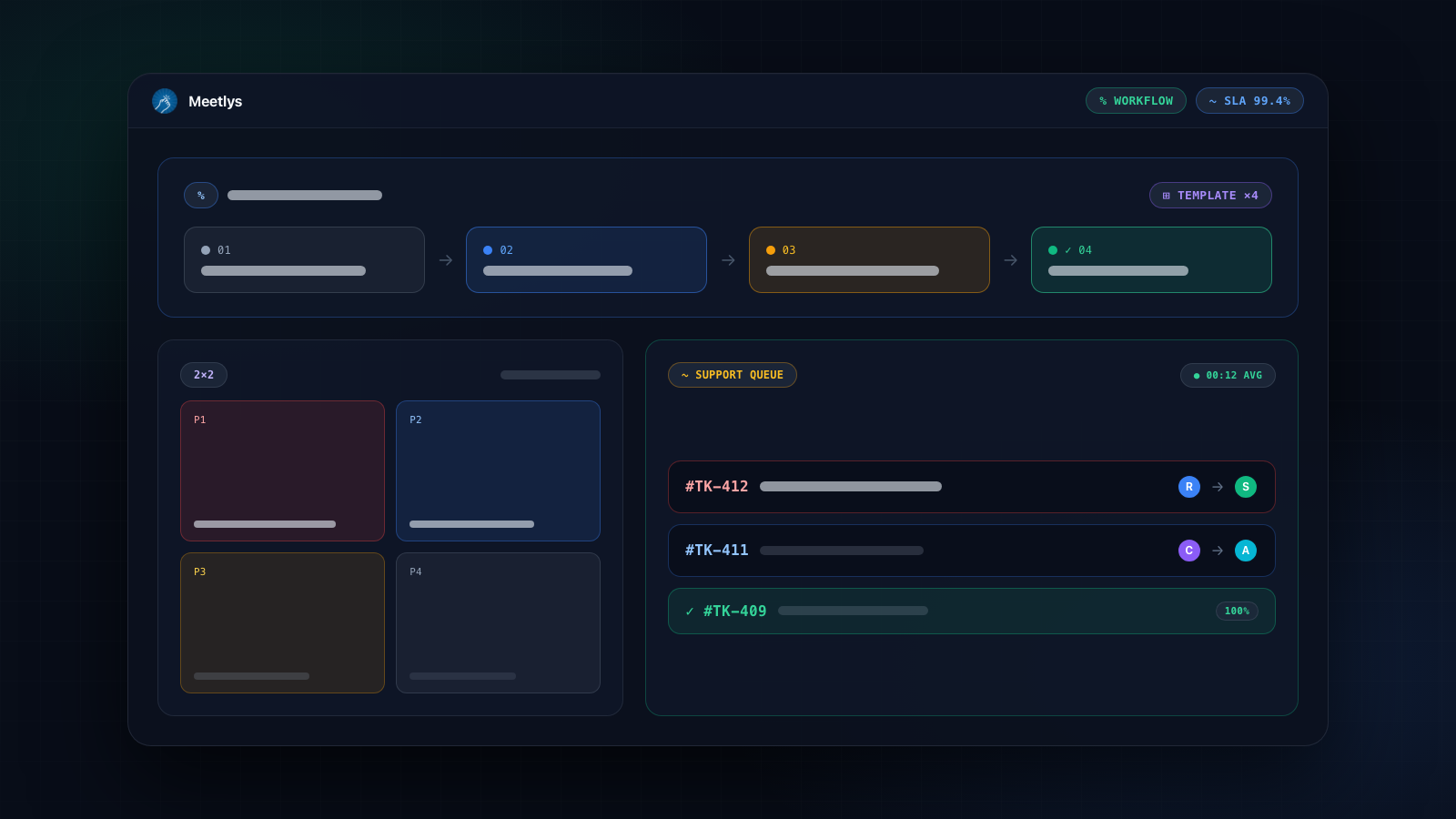
Kanban columns come from the board's workflow. By defining your own process you shape the columns around your work: for example "Request received, Design, Approval, Published".
- Open Workflow Processes from the menu and use New Workflow.
- Fill in Workflow Name.
- Under Workflow Steps, add the steps in order with New Step and name them. Each step maps to a task status.
- Choose the units that manage the workflow and the units that will use it, then save.
- Open the board and select this workflow for it. In the Kanban view the columns are now your steps.
If no workflow is defined for a board, the Kanban view reports that it cannot find columns; assign a workflow first.
Task templates
Use Task Templates for work that follows the same steps every time. A template is a predefined list of subtasks. For example, a "New employee hardware setup" template brings the steps for preparing the computer, opening accounts and the handover record ready-made for every new hire.
Templates can be used in the support desk as well: a template you select in a unit's support settings comes into play when a new request arrives.
Labels
You can group tasks with colored labels. Labels can be specific to a board or company-wide, and a task can carry several.
Things to know
- When a board is linked to a location, that location's admin also manages the board and its tasks.
- Boards you create or edit without a connection are queued and sent when the connection returns.
- A board that is open to the project team only does not admit guests.