Make voice and video calls
Start a call from a chat, task or meeting, manage sound and camera, keep working with the mini window, and review your call history.
With this guide you will start a voice or video call from a chat, a task or a meeting, manage sound and camera while you talk, and keep working with the mini window. You will also find the limits of calls stated plainly.
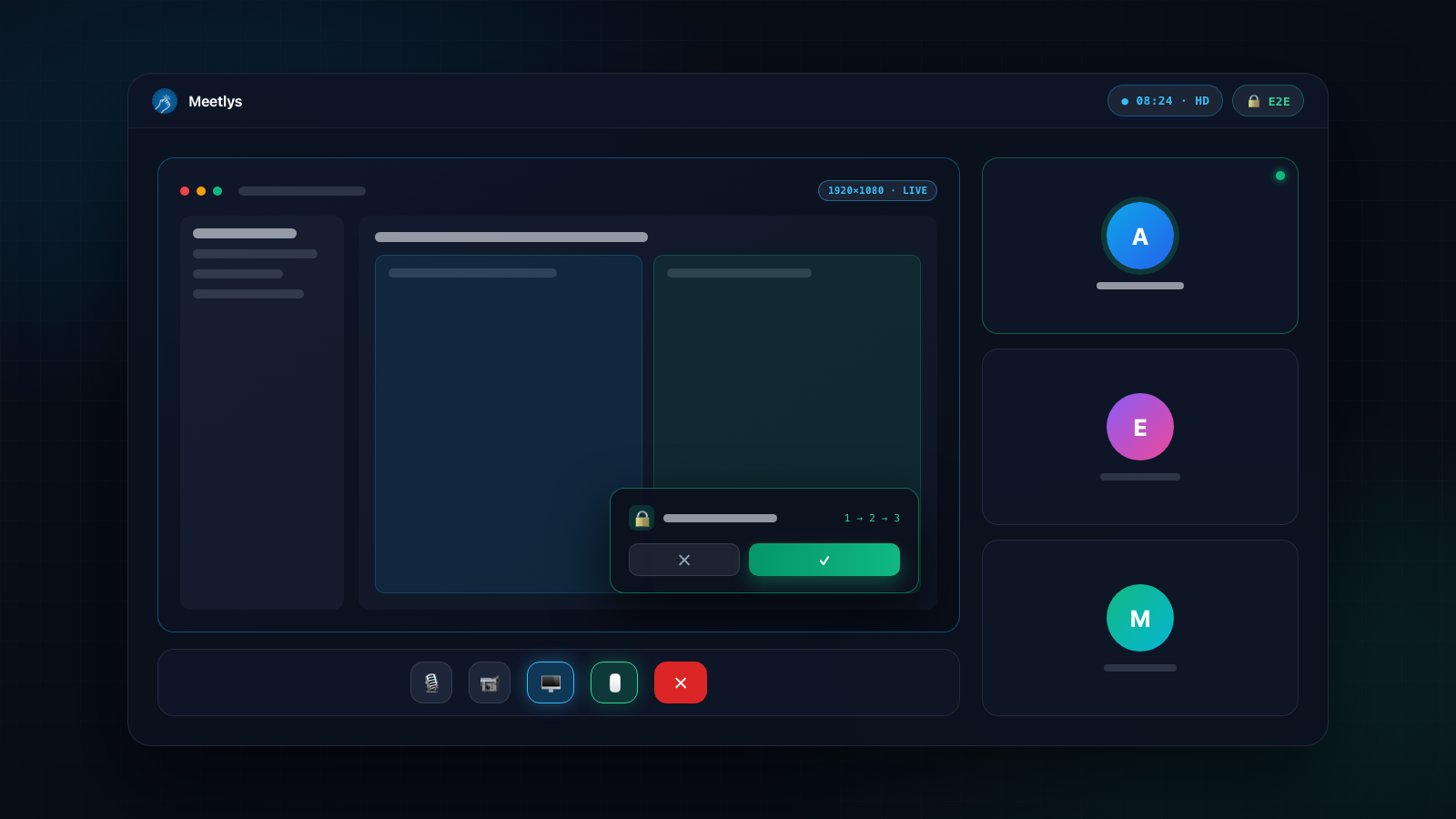
Start a call
- Open the place you want to talk in: a direct message, a task, a meeting, a support ticket or a team's chat.
- Press the call button. In direct messages it is at the top of the conversation.
- The other side rings and can accept or decline. If nobody answers within about half a minute, the call is recorded as missed.
The call stays attached to the item you started it from; you do not need to generate a separate meeting link. You can invite more people while the call is running.
During a call
- Sound and camera. You can mute and unmute your microphone and turn your camera on or off; everyone sees your state. To turn a voice call into a video call you do not need to start a new call.
- Reactions. Send an emoji reaction without interrupting the speaker.
- Your own picture. Drag your self-view to move it around the screen.
- Connection state. Each participant's tile shows their connection state. A brief drop does not end the call at once.
Screen sharing and remote control
During a call you can share your screen and, with the other person's consent, operate their computer remotely. For the steps, the consent flow and the limits, see Share your screen and use remote control.
The mini window
When you move to another screen during a call, for example to open a task or a note, the call does not end. It shrinks into a small draggable window with a timer; you keep working and tap the window whenever you want to return to the call.
Call history
On the Calls screen in the menu you can see incoming, outgoing and missed calls, filter by date, search, and call someone back.
Limits and things to know
- Small groups. Group calls are designed for up to 6 people. They are not suited to large meetings or webinars.
- No recording. Calls are not recorded and not transcribed.
- Encryption. Sound and video are encrypted as they travel between devices.
- When the app is closed. If the app is closed on your phone, an incoming call arrives as an ordinary notification; no full-screen call screen opens.
- Incoming call sound. While the app is open, incoming calls are shown with a banner and a sound.