Smart mentions: the eight symbols
Tag people, companies, departments, boards, meetings, tasks, support requests and locations with eight symbols, and learn who gets notified.
With smart mentions you can point to more than people inside a message: companies, departments, boards, meetings, tasks, support requests and locations too. After this guide you will know when to use each of the eight symbols and who gets notified.
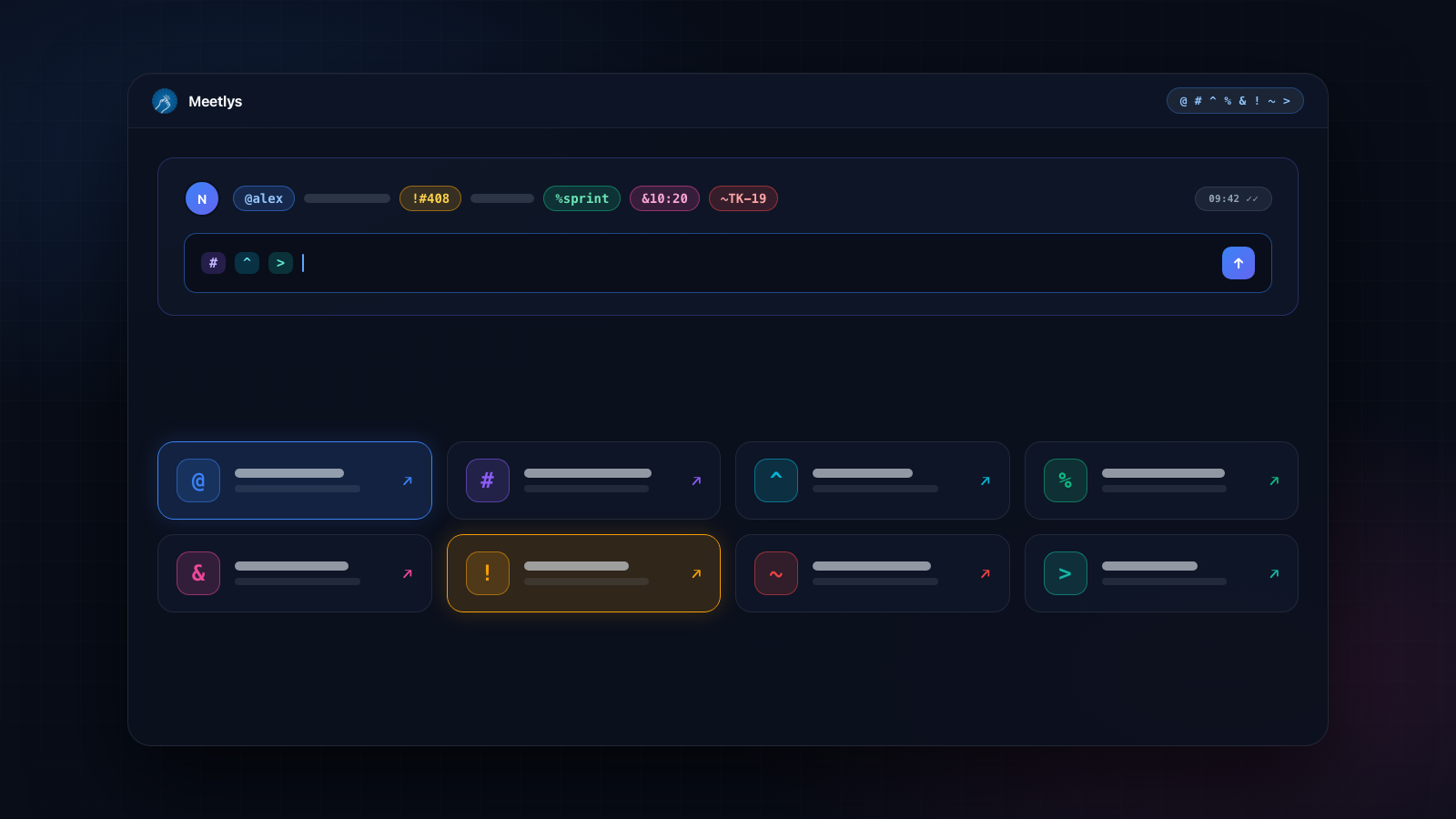
The eight symbols
| Symbol | What it tags | What a tap opens |
|---|---|---|
@ | People | The person's profile |
# | Companies | Company detail |
^ | Departments | Department detail |
% | Boards and projects | Board detail |
& | Conversations and meetings | Meeting detail |
! | Tasks | Task detail |
~ | Support requests | Support request detail |
> | Locations | Location detail |
Add a mention
- While writing a message, a comment or a task description, type one of the symbols. A suggestion panel opens.
- Keep typing to search, or switch between the category tabs in the panel. The people and items you used most recently come first.
- Pick from the list. The mention appears in the text as a chip showing the item's real name, with an icon and color for its type.
- Send the message. Anyone reading it can tap the chip to open the item.
Example: write "!Proposal deck is ready, @ayse please review it before &Monday client meeting" and the task, the person and the meeting each become a link that opens on its own.
Examples from a workday
- Handing work over. Write "
@mehmet, can you finish!Invoice correction today"; Mehmet gets the notification and reaches the task in one tap. - Preparing for a meeting. Write "Let's close the open work on
%Marketing before&Quarterly review" in the board's chat; everyone looks at the same meeting and the same board. - In the field. Write "Delivery goes to
>Ankara warehouse, questions to^Logistics" in a task description; the reader finds the address and the department without searching. - Looking after a customer. Write "Let's answer
~Printer will not connect from#Atlas Construction today" in a comment; the reader opens the support request and the company in one tap.
Who gets notified
- A person tagged with
@gets a notification in their inbox, and a push notification on their phone. - The other seven symbols link to an item: they let the reader open that task, board, meeting or location in one tap.
- AI assistants can be tagged with
@too; the AI assistant guide explains when an assistant answers.
Things to know
- You can only tag what you can see. The suggestion panel lists the people and items you have access to. Someone who taps a chip can open that item only if they are allowed to.
- No
@in one-to-one messages. Tagging people is switched off in two-person direct messages. - Chips appear without waiting. Mention names are resolved from data on the device first, so they stay readable on a weak connection.
Tip. Instead of describing a piece of work at length, tag the task with ! and its board with %. The reader does not have to search; they go straight to the item.