Create and run meetings
Create a meeting, add participants and roles, follow the responses, keep notes and files on the meeting, and start the call from it.
In Meetlys a meeting is more than a box in a calendar: the participants, their responses, the conversation, the notes and the files stay on one record. With this guide you will create a meeting, set its participants and roles, follow the responses and start the call from the meeting itself.
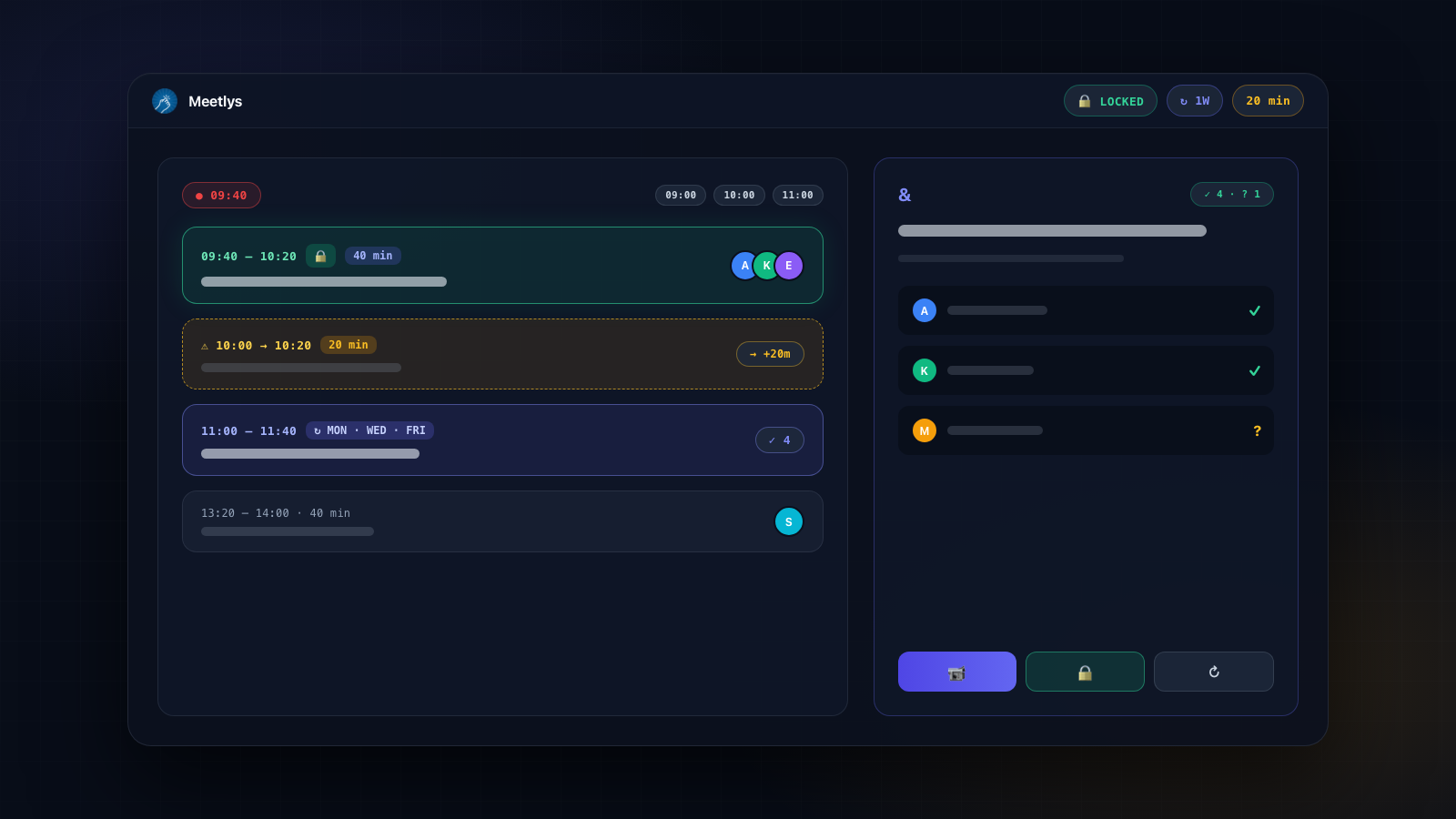
Conversations or Meetings: which one to use
The menu has two entries, and both show the same kind of record.
| Conversations | Meetings | |
|---|---|---|
| When | No set time; an ongoing group conversation | Has a plan in the calendar |
| How it starts | With New Group | By scheduling it |
| What is inside | Participants, conversation, notes, files, subtasks | The same, plus the calendar view and responses |
| Example | A project team's day-to-day discussion | Thursday 2 pm client presentation |
Create a meeting
Anyone can create a meeting; no special permission is needed.
Start creating
Open Meetings from the menu and press the create button. It reads Schedule meeting.
Write the subject
Fill in Meeting subject; this field is required. If you like, add the agenda under Meeting note.
Add participants
Select at least one person. For someone without a Meetlys account, use the option to invite an outside participant by e-mail and type their address; several addresses can be separated with commas or spaces.
Set the time
In the scheduling step, look at the participants' free time and place the meeting in the calendar. Location, recurrence and conflict choices are set there; see Plan with 20-minute slots for the details. Scheduling is optional: without a time, the record stays a conversation with no set time.
Save
Finish with Save Meeting. Participants see the meeting in their inbox and in their calendar.
People without an account. When a person you added by e-mail signs up, the invitation is accepted automatically and they see the meeting. You can also share the invitation link from any app you like. On a phone you can pick the person from your contacts; the contact needs an e-mail address.
Meeting room. While choosing the time, in the Location step you can pick a meeting room or another location; the hours when that place is taken show in the calendar. For a place that is not on the list you can write a description.
Participants and roles
- Each person on a meeting is either an Admin or a Participant.
- To add or remove people or change a role, open the meeting and use Edit Participants.
- The organizer cannot be removed from the participants.
- Someone you add from outside your team becomes a guest: they see only the meeting they were invited to, not the rest of the team's work. Admins can pause or remove a guest's access at any time.
Responses
Each participant answers the meeting's plan. Until they answer, their status shows as Pending.
- I will participate: the meeting shows as busy in your calendar.
- I will not participate: that time becomes free in your calendar; the organizer still sees who declined.
- Maybe: you are undecided.
Work inside the meeting
- Conversation. Questions before and follow-ups after are written in the meeting's own conversation, so they do not get lost in a general chat.
- Notes. Participants can read a note you attach to the meeting. Earlier versions are kept and can be restored.
- Files. Add the slides and attachments to the meeting. Meeting files are visible only to participants and the relevant admins.
- Follow-up work. Add what comes out of the meeting as subtasks, so it stays on record who took on what.
Start the call from the meeting
- When the time comes, open the meeting.
- Press the call button and start a voice or video call. There is no separate link to send.
- You can keep writing your note while you talk; the call shrinks into a small window.
Things to know
- Meetings do not sync with other calendar apps.
- Calls are not recorded.
- A meeting you create or edit without a connection is sent when the connection returns.
- Outside share links cannot be created for meeting files.
Related
- The Meetings feature page
- Plan with 20-minute slots
- Voice and video calls
- Work with notes