Conflicts, Locked Plans and recurring plans
Learn the four conflict choices with examples, lock plans, and edit recurring plans with the right scope.
When two plans land on the same time, Meetlys does more than warn you; it offers four choices and carries out the one you pick. With this guide you will learn what each choice does, how to lock a plan, and how to edit recurring plans.
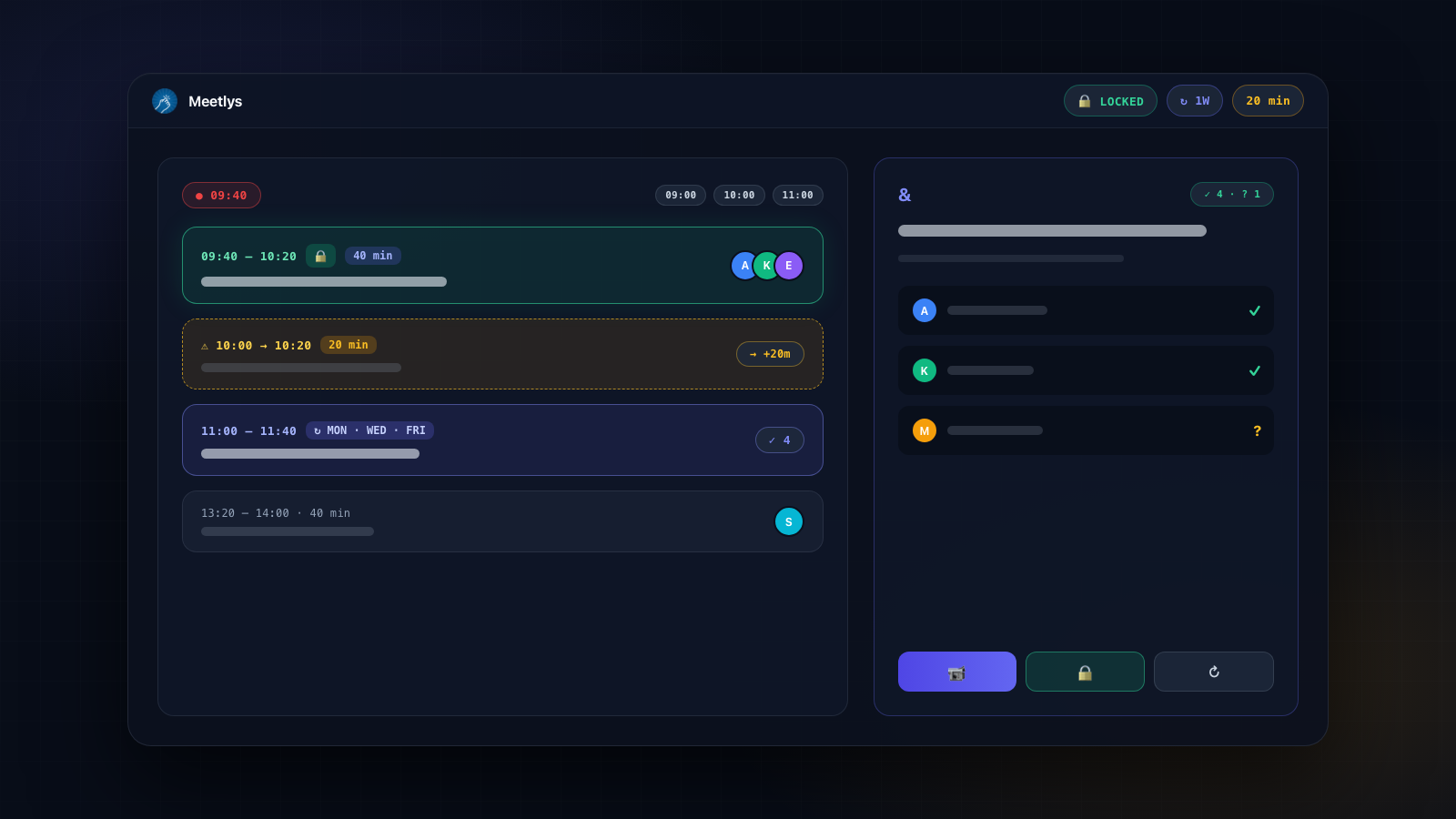
When there is a conflict
If another plan already sits in the slots you chose, a choice window opens when you save. The situation is the same in every example below: you have a "Weekly report" plan on Tuesday 10:00 - 11:00 and you want to add a "Client call" at exactly that time.
Reschedule
The new plan takes the time you chose; the clashing plan moves as a whole to later free slots.
Example: The client call goes in at 10:00 - 11:00. The weekly report moves to the next free hour in your calendar.
Split and Slide
The clashing plan is split where the clash happens; only the overlapping part is pushed later.
Example: If the client call only covers 10:20 - 11:00, the 10:00 - 10:20 slot of the weekly report stays where it is and its remaining 40 minutes slide into later free slots.
Overwrite
The new plan takes the clashing time away from the old plan. Those slots of the old plan are not moved anywhere else.
Example: The client call goes in at 10:00 - 11:00. The weekly report loses its slots in that hour.
Allow Conflict
Both plans stay in the same time. Nothing is moved.
Example: The client call and the weekly report both show on Tuesday 10:00 - 11:00; you decide on the day which one comes first.
Declined plans do not count as conflicts. A plan you answered with Not going does not fill your calendar; no choice window appears when you add a new plan at that time.
Locked Plans
A locked plan is never moved, split or overwritten. Use it for work whose time must not change: a client visit, an exam, a doctor's appointment.
- Open the plan.
- Use Lock. To remove the lock, use Unlock in the same place.
- Slots holding a locked plan are shown with a red frame and a lock icon; they can still be selected.
- If your new plan clashes only with locked plans, you are offered a single choice: Allow Conflict.
- If locked and unlocked plans clash together, the action you choose is applied only to the unlocked ones.
Recurring plans
Do not re-enter regular work every time. While creating the plan, use Repeat to open Recurrence Settings and choose the pattern:
- Every day
- Every weekday
- Every week, on the days you choose
- Every N weeks (from 2 to 12 weeks)
- Monthly: with options such as the first working day, the last working day or the last day of the month
- Yearly
You can define a recurrence without an end date. In that case plans are generated in batches: daily and weekday patterns up to three months ahead, the others up to one year ahead.
Choose the scope when you edit
When you change or delete a recurring plan, Meetlys asks where the change should apply:
- Only this plan: only the day you selected changes. For example, you move this week's team meeting one hour later.
- This and following: everything from the selected day onward changes. For example, the meeting will be on Wednesday instead of Tuesday from now on.
- All: the whole series changes, or the recurrence is stopped altogether.
Things to know
- Conflict checking covers every plan type: meetings, tasks, support tickets and standalone plans.
- Reschedule and Split and Slide change the time of another plan. Before you save, consider whose plan is about to move.