Connect your AI tool to Meetlys
Create an API key and connect Claude Code, Cursor, VS Code, OpenAI Codex or Antigravity to Meetlys with ready-to-copy setup.
With this guide you will connect the AI tool you already use to your Meetlys account. Once it is connected you can tell the tool "list my tasks due today" or "plan a meeting for tomorrow at 14:00" and get the work done by conversation.
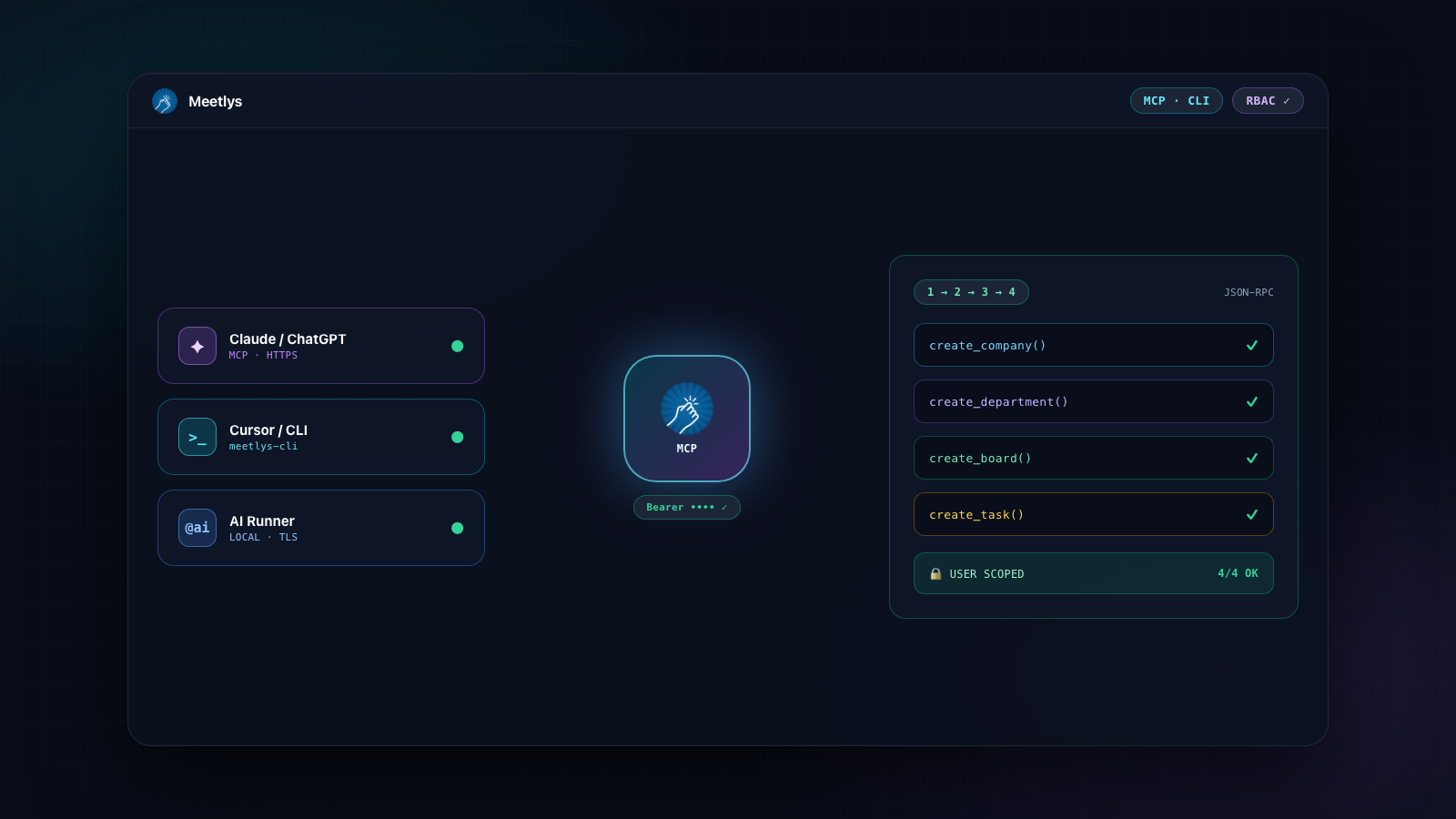
How it works
The connection runs over MCP — the open standard AI tools use to connect to apps. The Meetlys connection address runs on the Meetlys side; you install nothing on your computer. All you do is give your tool one address and two keys.
https://mcp.meetlys.com/mcpYour identity is checked with two HTTP headers: x-api-key and x-secret-key.
Before you start
- A Meetlys account.
- One of these tools: Claude Code, Cursor, VS Code, OpenAI Codex or Antigravity. Your tool must be able to send custom HTTP headers to a remote MCP server.
1. Create an API key and secret
- In Meetlys, open Profile → Profile Menu → API Integrations.
- Use New API Key.
- Copy the two values shown: the API key and the secret key. Keep both somewhere only you can reach, such as a password manager.
The same screen also shows ready-made setup content with your keys filled in; it matches the examples below.
2. Connect your tool
In the examples below, replace YOUR_API_KEY and YOUR_SECRET_KEY with your own values.
Claude Code
One command in the terminal:
claude mcp add --transport http meetlys https://mcp.meetlys.com/mcp --header "x-api-key: YOUR_API_KEY" --header "x-secret-key: YOUR_SECRET_KEY"If you prefer, write the same setting into the .mcp.json file in your project folder:
{
  "mcpServers": {
    "meetlys": {
      "type": "http",
      "url": "https://mcp.meetlys.com/mcp",
      "headers": {
        "x-api-key": "YOUR_API_KEY",
        "x-secret-key": "YOUR_SECRET_KEY"
      }
    }
  }
}
Cursor
Add to ~/.cursor/mcp.json:
{
  "mcpServers": {
    "meetlys": {
      "type": "http",
      "url": "https://mcp.meetlys.com/mcp",
      "headers": {
        "x-api-key": "YOUR_API_KEY",
        "x-secret-key": "YOUR_SECRET_KEY"
      }
    }
  }
}
VS Code
Add to .vscode/mcp.json. In this file the top-level key is named servers:
{
  "servers": {
    "meetlys": {
      "type": "http",
      "url": "https://mcp.meetlys.com/mcp",
      "headers": {
        "x-api-key": "YOUR_API_KEY",
        "x-secret-key": "YOUR_SECRET_KEY"
      }
    }
  }
}
OpenAI Codex
Codex reads its settings from ~/.codex/config.toml, not from JSON:
[mcp_servers.meetlys]
url = "https://mcp.meetlys.com/mcp"
http_headers = { "x-api-key" = "YOUR_API_KEY", "x-secret-key" = "YOUR_SECRET_KEY" }
Antigravity
Add to ~/.gemini/antigravity/mcp_config.json:
{
  "mcpServers": {
    "meetlys-mcp": {
      "serverUrl": "https://mcp.meetlys.com/mcp",
      "headers": {
        "x-api-key": "YOUR_API_KEY",
        "x-secret-key": "YOUR_SECRET_KEY"
      }
    }
  }
}
If the file already has settings. Do not delete what is there; add the Meetlys entry next to the others. After saving, you may need to restart or reload your tool.
3. Try the connection
Write a simple request to your tool: "List my open tasks in Meetlys." If your tasks come back, the connection works.
What the AI can do
The connection offers 179 actions. The main areas:
- Tasks and notes: list, create, change assignees, dates, priority and labels; write notes and restore an older note version.
- Calendar and meetings: create plans, set attendance, lock a plan, define recurrence; manage meetings and participants.
- Support tickets: create, update status and assignees, cancel.
- Leave: open, approve and reject requests, see balances.
- Products, services, orders and inventory: catalog, order status, stock adjustment and transfer.
- Messaging and files: add comments, send direct messages, upload files, create and revoke share links.
- Organization: companies, departments, boards, locations and team members.
Online card payment cannot be made through this connection; it is only possible inside the app.
Safety tips
- It acts with your permissions. The AI sees only what you can see and does only what you can do. That also means it can delete anything you can delete.
- Read before you allow a deletion. When your tool asks for confirmation to delete, approve, cancel, transfer, send a message or share something, check what will be affected. That confirmation is shown by the tool you use, not by Meetlys; do not turn confirmation prompts off in your tool.
- Keep your keys private. Do not share the keys with anyone, do not put them in a public code repository, and never write them into an address; they are used as headers only.
- Revoke a key you no longer use. On the API Integrations screen, use Revoke Key. Revoking cannot be undone, and tools using that key stop working immediately.
- Be cautious with content. If a task or a message contains text that looks like instructions aimed at an AI, do not let your tool take it for your own request.
Things to know
- There is no one-click connection and no sign-in in the browser to grant access; the connection is always made with the key pair.
- File uploads are limited to 10 MB per file.
- The action descriptions are written in Turkish; your tool may show the action list in Turkish.
- If you want a shared AI member that everyone on your team can write to, create an AI assistant.