Giving an AI assistant a seat in the team: what to delegate and how to stay in control
Most people now have an AI tool open in a separate window. You copy a customer message into it, ask for a draft reply, copy the answer back, and fix the parts it got wrong because it did not know the context. It helps, but it sits outside the work. The rest of the team cannot see what you asked or what it said, and the next person starts from zero.
A different arrangement is to give the assistant a seat in the team: a name, a place in the conversations where work happens, and a clear understanding of what it is there for. This post is about doing that sensibly, including the parts that deserve caution.
What changes when the assistant is a team member
- The request has context. You ask on the task or in the conversation the question belongs to, not in an empty window.
- The answer is visible. Colleagues see what was asked and what came back, and they can correct it.
- The work has a record. Next month, the draft and the discussion around it are still on the item.
What to delegate, and what to keep
A useful rule: delegate work where a wrong answer is cheap to spot and cheap to fix.
Good candidates
- First drafts: a reply to a customer, a task description, meeting notes turned into a list of actions.
- Summaries: a long conversation, or a document attached to a task.
- Preparation: questions to ask before a meeting, a checklist for a recurring job.
Keep with a person
- Decisions about people, money or commitments to customers.
- Anything sent outside the company without someone reading it first.
- Work where a mistake would be hard to notice, such as figures nobody will check.
An AI assistant can be wrong while sounding certain. Treat what it produces as a draft from a quick colleague who has not been with you long: often useful, always to be read.
Staying in control
- Name an owner. One person is responsible for the assistant: where it is added, what it is used for, and when it should be switched off.
- Add it deliberately. Put the assistant in the teams and tasks where it is needed, not everywhere.
- Write requests like a brief. Say what you want, for whom, and in what form. "Draft a reply to this customer in two short paragraphs and confirm the delivery date in the task" works better than "answer this".
- Review before it counts. A person reads the output before it reaches a customer or becomes a decision.
How this looks in Meetlys
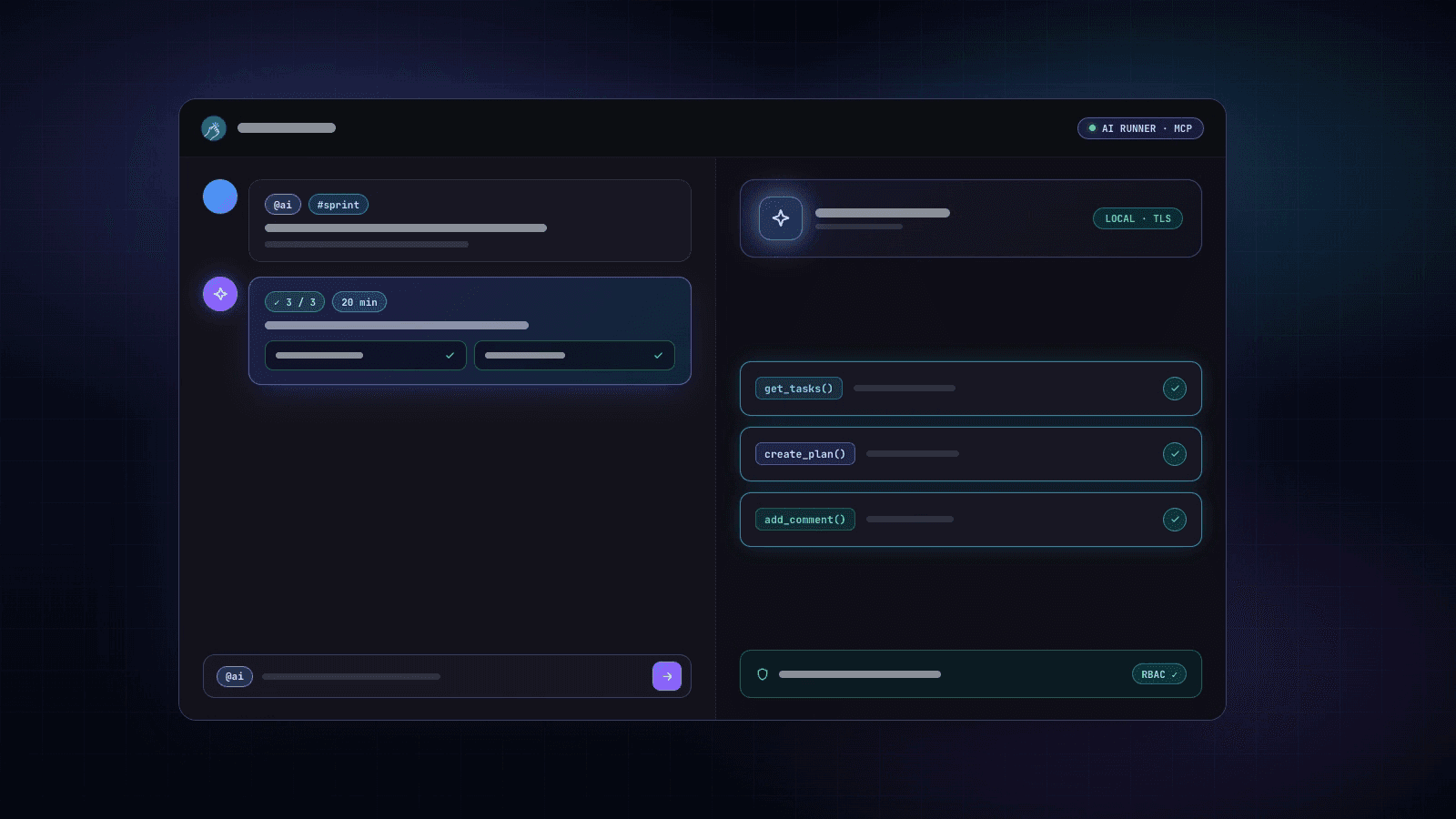
In Meetlys you create an AI assistant as a team member. It has its own name, its own @username and an AI badge, so nobody mistakes it for a person. You add it to teams, tasks, boards and chats, then send it a direct message or @mention it on a task, and it answers in the same conversation.
Meetlys does not include an AI model of its own. The assistant runs through Meetlys AI Runner, a small helper program you install on your own computer (macOS 12 or later, Windows x64, Linux x64 or arm64). The Runner hands each request to an AI tool you already use, such as Claude Code, OpenAI Codex or Google Antigravity, or to a local model through Ollama or LM Studio. You use your own AI account or model.
The controls stay with people:
- An assistant is always an ordinary member. It never gets admin rights.
- It is bound to the first computer it connects from until an admin resets that binding.
- Managers can rotate its keys, deactivate it or delete it at any time.
- An assistant that belongs to a company stays with the company when the person who created it leaves.
There is also a second route. You can keep the AI in your own tool and connect it to your Meetlys account through MCP, the open standard AI tools use to connect to apps. The AI then works with your own permissions and can only see and do what you can. The AI page explains both routes, and the help center has the setup steps.
Honest limits and precautions
Read this part before you install anything.
How the Runner works on your computer. The AI tool runs on that computer with the permissions of the logged-in user, and it does not stop to ask for approval before each action. Anyone who can message the assistant can give it work.
- Use a dedicated machine or account. Run the Runner on a computer, or under a user account, that holds nothing you would not want an AI tool to read or change. The laptop with your personal files and saved logins is the wrong place.
- Add the assistant only to teams you trust. Everyone who can write to it can direct it. Keep it out of large or mixed spaces where you do not know everyone well.
- Know where your text goes. With a cloud AI tool, the prompts and attachments are sent to that AI provider under your own account. With a local model, they stay on the machine.
- Switch it off when in doubt. If something looks wrong, deactivate the assistant or rotate its keys first, and investigate afterwards.
Setting up the Runner means running an install command and pairing it with the assistant's key, so plan for a little technical help the first time.
The takeaway
An AI assistant is most useful when it works where the team works, in view of everyone, on tasks where a mistake is easy to catch. Give it a seat, an owner and a narrow circle of trusted people. Keep decisions and anything customer-facing with a person. And because the assistant runs on a real computer with real permissions, give it a machine of its own and choose carefully who may talk to it.