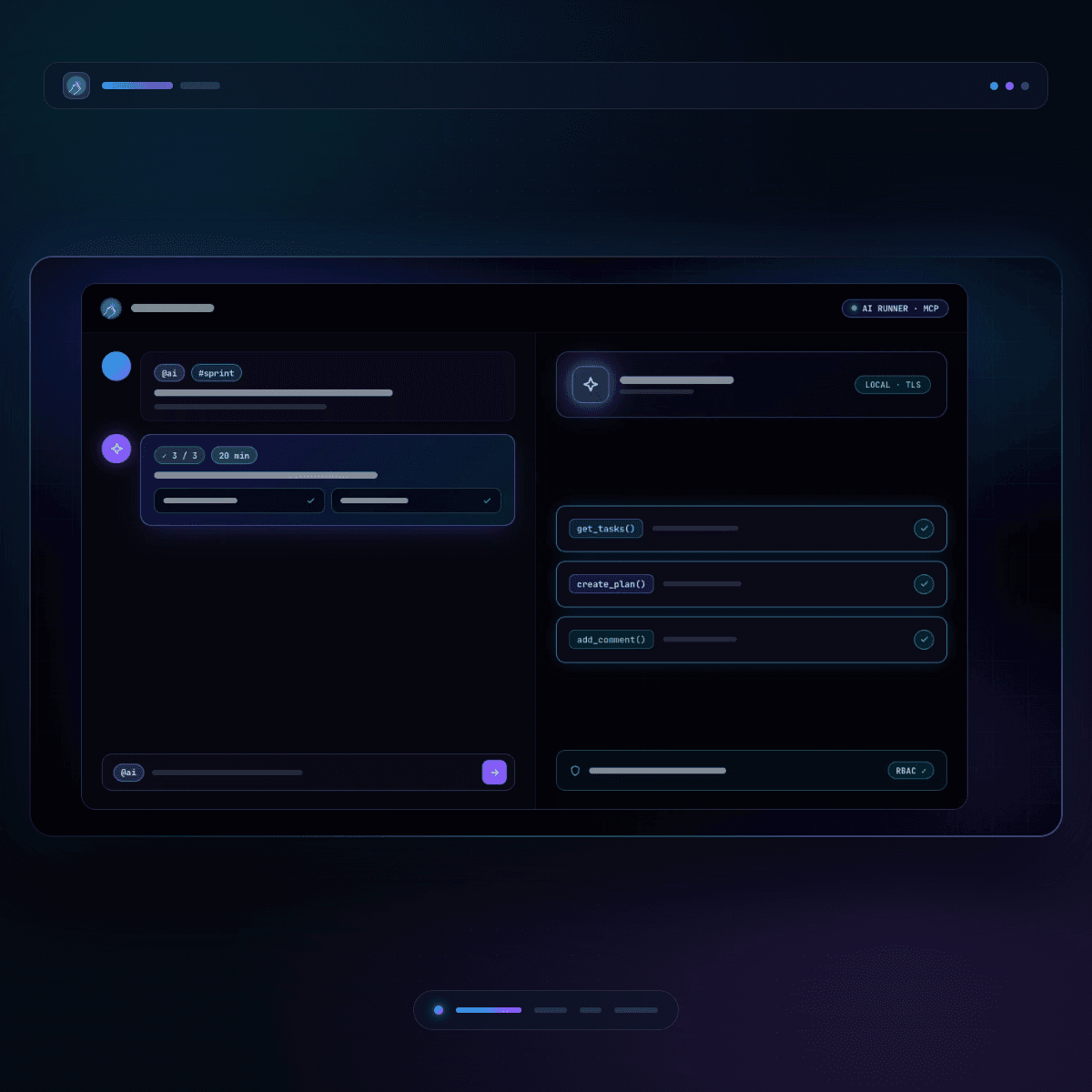
Connect Your AI Tool
- Connection typeMCP: the open standard AI tools use to connect to apps
- Address
https://mcp.meetlys.com/mcp - InstallationHosted by Meetlys; you install nothing on your computer
- Sign-inAn API key and secret you create under Profile → Profile Menu → API Integrations
- Setup documented forClaude Code, Cursor, VS Code, OpenAI Codex, Antigravity
Leave the Meetlys part to your AI tool
A task comes to mind while you are busy. Instead of switching windows, you tell the AI tool you are working in: "Create a task for the supplier call on Thursday and assign it to me."
You can connect the AI tool you already use to your own Meetlys account. It works on your behalf: it sees what you can see and does what you can do, and nothing more.
One address, your own key, nothing to install
The connection uses MCP, the open standard AI tools use to connect to apps. It is hosted by Meetlys, so you install nothing on your computer. This is the address:
https://mcp.meetlys.com/mcpCreate a key
In Meetlys, go to Profile → Profile Menu → API Integrations and create an API key and secret.
Add Meetlys to your tool
Enter the address together with your key and secret in your AI tool's connection settings. The same screen in Meetlys shows ready-to-copy setup text for each tool.
Ask in plain language
For example: "Which of my tasks are due this week?" or "What is still open on the launch board?"
Setup is documented for
The help guide walks through each tool step by step.
The AI can only do what you can do
With your permissions
The connection acts for your account. If you cannot see a board, a file or a leave request in Meetlys, the AI connected to your account cannot see it either.
The key is yours
You create the key, and you can revoke it on the same screen whenever you like. A revoked key stops working.
No card payments
Card payments cannot be made through the AI connection. They are made only inside the app.
Keep in mind. A connected tool can create, change and delete records on your behalf, send messages and share files. Read what your tool proposes before you approve it, and do not share your key with anyone. Your prompts, and the content the tool reads from Meetlys, are processed by the provider of the AI tool you use.
What your AI tool can work with
179 actions across your workspace. These are the main areas:
| Area | What you can ask for |
|---|---|
| Tasks and boards | List, create and update tasks; change status, deadline, priority, assignees and labels; create boards |
| Calendar and meetings | Create and change plans, set attendance, lock a plan or make it recurring; manage meetings and participants |
| Support requests | Open, update, reassign or cancel a request |
| Notes and files | Create and edit notes, restore an earlier version; list and upload files, create or revoke a share link |
| Messaging and inbox | Read and add comments, send a direct message, read the inbox |
| Team and leave | Companies, departments, locations, team members and invitations; file or approve a leave request, check a balance |
| Products, services, orders and inventory | Update the catalogue, create orders, record a payment, adjust or transfer stock |
The connection sits on top of the features you already use
This page is about connecting your own tool to your own account. If you want an assistant the whole team can message, see AI Assistants. The two routes are compared on the AI page.
More details
The remaining details of this feature.
| Feature | In plain words |
|---|---|
| Permissions | The AI works with your permissions; it sees and does only what you can |
| Scope | 179 actions across tasks, calendar, meetings, support requests, notes, files, leave, products, services, orders, inventory, messaging and organization |
| Revoking a key | On the same screen, whenever you like |
| What it cannot do | Card payments; those are made only inside the app |
Create your key and write your first request
Open Meetlys, create a key on the API Integrations screen and add the address to your AI tool.
Free for up to 3 people