Files
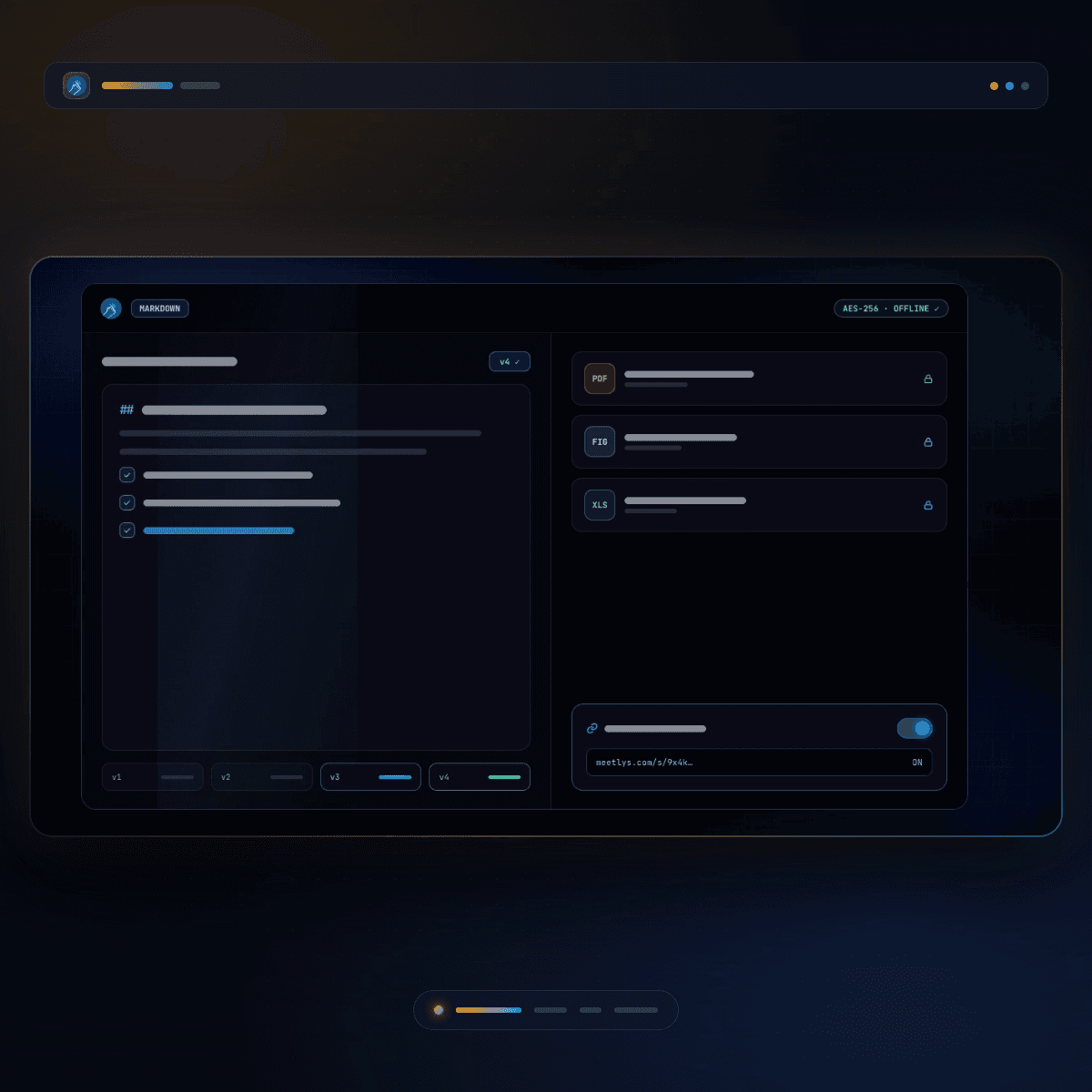
- Where files liveWith the task, meeting, chat or support request they belong to
- PermissionsA file follows the permissions of the record it is attached to
- Files screenEvery file you can access, in list, grid or feed view
- SearchBy file name, description and content text
- FiltersUnit, record, uploader, file extension, date and Trash
Keep the file next to the work it belongs to
The latest contract is an e-mail attachment, and nobody is sure it really is the latest. The shared drive has folders, but who can see which one has to be managed separately. In Meetlys a file belongs to the task, meeting, chat or support request it was uploaded to.
Whoever can see that record can see the file. There is no separate drive to organize and no second set of sharing settings to keep in step.
Whoever sees the work sees its files
Permissions follow the work
A file on a task is visible to the people on that task. If a file is linked to several records, access to any one of them gives access to the file.
Guests see only their own work
Guests see the files of the items assigned to them, not the unit's other files.
Control ends when someone leaves
Having uploaded a file is not enough on its own. Someone removed from the record or the company can no longer manage the file they uploaded.
Find it even when you do not remember its name
The Files screen shows everything you can access in one place. Looking for last month's quote, you do not have to remember which task it was on.
| What you need | In Meetlys |
|---|---|
| Search | By file name, description and content text |
| Filter | By unit, record, uploader, file extension and date, with a Trash filter for deleted files |
| Browse | List, grid or feed view |
| Open without downloading | Images, video, audio, PDF and text files preview in the app. Office documents and archives are downloaded or opened with an app on your device. |
| Tidy up | Rename, add a description, and link the file to other records as well |
Share outside the team, and take it back when you need to
You are sending a quote to a customer who does not use Meetlys.
Create a link
Create a share link for that one file. Your customer opens it without signing in.
Send it
Copy the link and pass it on however you like.
Revoke it when you are done
If the quote changes, revoke the link. Outside access stops at once, and your team's access to the file is not affected.
How downloads work. Every download uses a one-time link that is valid for 30 seconds. A download address that leaks somewhere cannot be used again. Outside share links cannot be created for meeting files and inventory files.
Small things that keep files tidy
- No clashing names. Upload a second "Monthly Report.pdf" and it is saved as "Monthly Report (1).pdf", with no error to deal with.
- Readable names. Photos from your camera are saved with a clear name and date instead of a string of random characters.
- Straight from a message. Press and hold an attachment in a conversation to see its size, who uploaded it and when, then download it or create a share link.
- Easy uploads. Drag and drop a file on desktop and web; on Android and iPhone, share into Meetlys from another app.
A file shows up wherever the work does
More details
The remaining details of this feature.
| Feature | In plain words |
|---|---|
| Preview | Images, video, audio, PDF and text open in the app |
| Downloads | Every download uses a one-time link valid for 30 seconds |
| Share link | An outsider opens the file without signing in; you revoke the link instantly |
| Files with the same name | The new file is named with a "(1)" suffix automatically |
| Tidying up | Rename, add a description, link to other records |
Move your files next to your work
Open Meetlys, add your first file to a task and see who can view it.
Free for up to 3 people