Notes
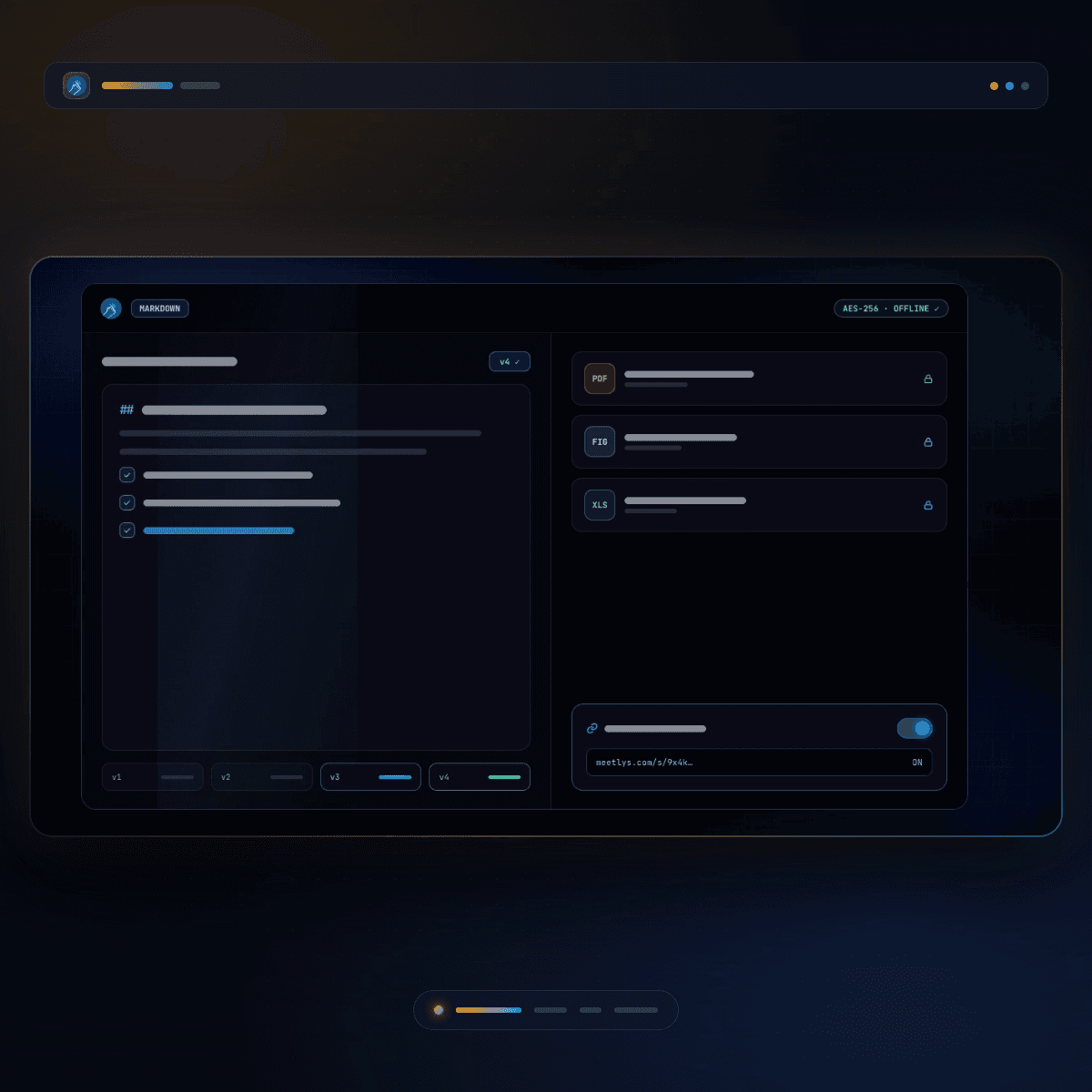
- Note formatMarkdown, with a toolbar for headings, lists, bold text and links
- Editing viewsEdit, preview, or both side by side
- SavingSaved automatically while you write
- Where a note can liveTasks, meetings, boards, support requests, companies, departments, locations, or as a general note
- Several linksThe same note can be attached to several items
Write the note where it will be needed
The meeting notes are in someone's personal app. The brief is inside an e-mail, and the decisions depend on who remembers them. In Meetlys a note is attached to the task, meeting or board it is about. Whoever opens the work finds what was written for it right there.
There is no folder tree to keep tidy and no "where is the note?" to answer.
A plain editor, tidy notes
Format with Markdown
Use the toolbar for headings, lists, bold text and links. You do not need to know Markdown; those who do can simply type it.
Three ways to work
Switch between editing only, preview only, or a split view that shows both side by side.
Saved as you write
The note is saved automatically while you type. On the Notes screen, search and filters help you find an older note.
One note, next to every piece of work it concerns
After a client meeting you write the decisions as a note on that meeting. If the note also matters to the quote task, you link it to both; there is nothing to copy.
- Attach a note to a task, meeting, board, support request, company, department or location, or keep it as a general note.
- The same note can be attached to several items.
- A note you attach to a task is also linked automatically to that task's company, department and board.
- A note follows the access rules of what it is attached to, so there are no separate sharing settings to maintain.
Who can read a note. A note on a task is read by the people on that task. A note on a company, department or board is read by its author and by that unit's admins, not by every member of the unit. If the whole team should read something, write it on the task or meeting concerned.
Change your mind without losing your work
| Situation | What Meetlys does |
|---|---|
| You edited a note and need the old text | When the title or content changes, the previous state is kept automatically as a version. Open the history and look at the earlier text. |
| You want to go back | Restore the version you choose. The current text is kept as a version first, so nothing is lost by going back. |
| You have no connection | You can read your notes. What you write, edit or delete is saved on the device and sent when the connection returns. |
- Versions are taken at most once a minute; not every keystroke is a separate version.
- Notes are not designed for several people writing at the same moment. Edit the same note in turn.
- You can delete history entries you no longer need.
A note shows up wherever the work does
More details
The remaining details of this feature.
| Feature | In plain words |
|---|---|
| Access | A note follows the permissions of what it is attached to |
| Version history | Earlier versions are kept automatically and can be viewed and restored |
| Offline | Readable without a connection; new and edited notes are sent when it returns |
| Finding notes | Search and filters on the Notes screen |
Keep what you know next to what you do
Open Meetlys and write your first note on a task or a meeting.
Free for up to 3 people