Support Desk
- Where it runsOn any company, department or board, each with its own settings
- Who can send requestsTeam members only, or external requesters too; you choose
- Request formCustom fields: text, number, date, dropdown, multi-select
- Sharing the formSent as a link or embedded in your website
- Requester accessRequesters sign in and see only their own request
Stop requests from arriving everywhere and going unanswered
One person writes an e-mail, another calls, a third mentions it in the corridor. Nobody is quite sure who has which request, or which ones are still waiting. In Meetlys you switch on a support desk for any company, department or board; requests come in through one form and land in front of the team that does the work.
There is no separate support tool to set up: the request lives in the same app as your tasks and your calendar.
An internal help line, or customer support
Each unit's support settings are independent of the others. Your IT department can serve employees only, while your after-sales team serves customers.
Internal only
When you switch support on, the desk is for internal use first: your team members open requests, and people from outside are not accepted. An outsider who reaches the form is told it is an internal help line.
Open to outsiders
Turn on external support and your customers create requests through a link, the form on your website or inside the app. You can also ask requesters to state their organization.
Four steps from form to resolution
Shape the form around your work
Next to the subject and description, add your own fields: text, number, date, dropdown or multi-select. A repair service asks for the device serial number, purchase date and fault type up front, so the first reply does not have to be "which device?".
Share it or embed it in your website
Send the form's link, or paste the ready-made embed code into the support page of your website.
Decide in advance who answers
Choose the people who are assigned to incoming requests automatically. A new request also lands in their inbox.
Message live and follow it to the end
Requester and support team write to each other on the request, both ways and live. You update the status as the work moves on.
Good to know. Requesters sign in or sign up to send and follow a request; anonymous requests are not accepted. A requester sees only their own request and cannot reach the rest of your company. Requests are not created from incoming e-mail, and the support desk makes no response-time commitment; you set your targets with your own team.
See where every request stands at a glance
| What you do | How |
|---|---|
| Follow the status | Six statuses: new, in process, pending, resolved, closed, canceled |
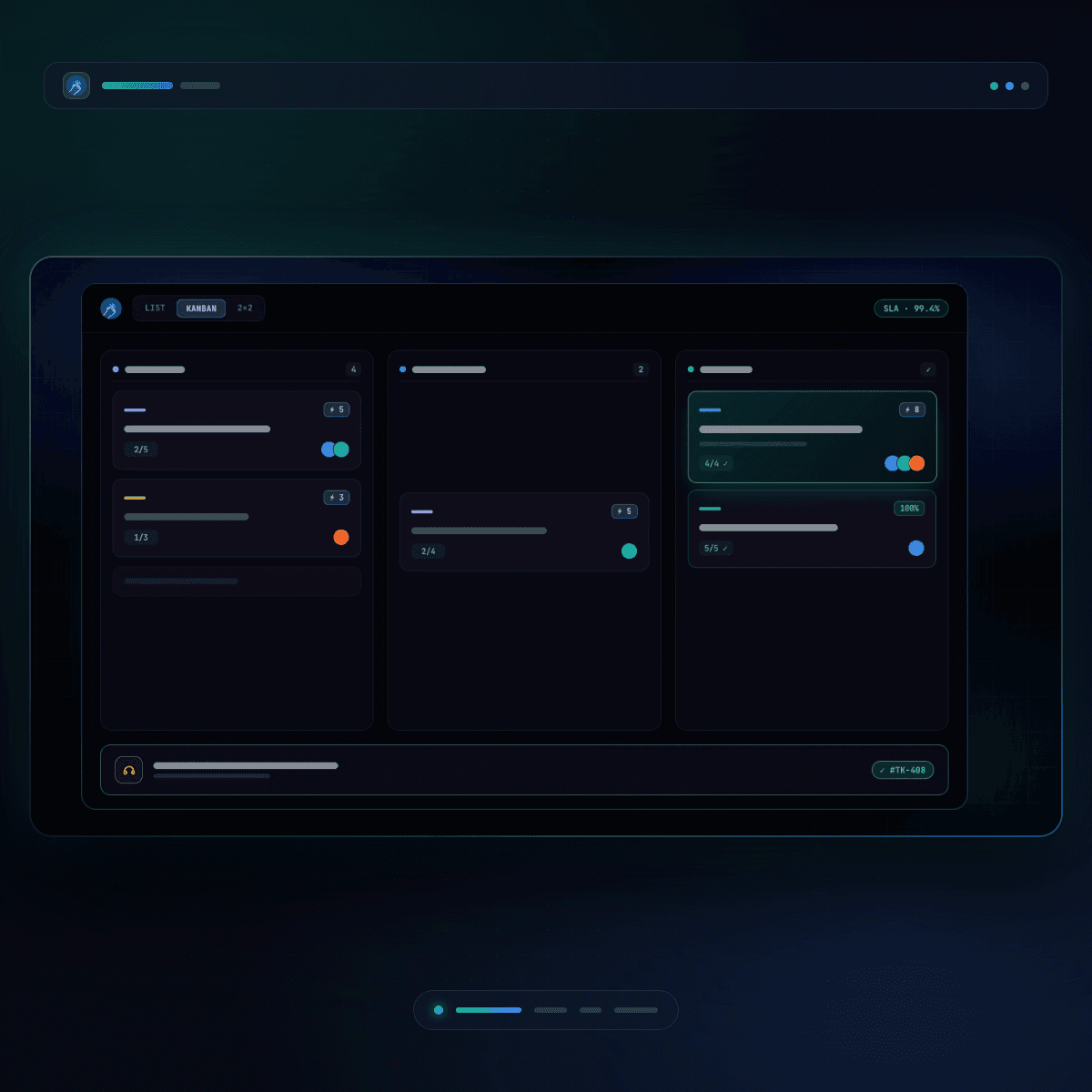
| Choose a view | A list or a Kanban |
| Break down the work | Link subtasks to a request; a task template you select in the support settings comes into play when a new request arrives |
| Reserve time | Create a calendar plan for the request, or start a call from inside it |
| Report | Export requests to Excel |
- Support settings are changed by an Admin of the company, department or board concerned.
- You can open a request yourself on behalf of your team, for example to record one that came in by phone.
- Support requests you create or edit without a connection are sent when the connection returns.
A request is not cut off from the rest of the work
More details
The remaining details of this feature.
| Feature | In plain words |
|---|---|
| Automatic assignment | Incoming requests are assigned to the people you choose |
| Messaging | Two-way, live messaging between requester and team |
| Statuses and views | New, in process, pending, resolved, closed, canceled; list or Kanban |
| Linked work | Subtasks, task templates, a calendar plan and a call from the request |
| Export | Requests can be exported to Excel |
Give every request an owner and a status
Open Meetlys, activate support for a department or a board, and share your form.
Free for up to 3 people